How I fixed my WebStorm workflow on a MacBook Pro 16"
I’ve been using WebStorm for a while, but something always bothered me. With the file tree, terminal, AI assistant, git panel, and a few other tools open, there was barely any space left for actual code. On a MacBook Pro 16”, that should not be the case.
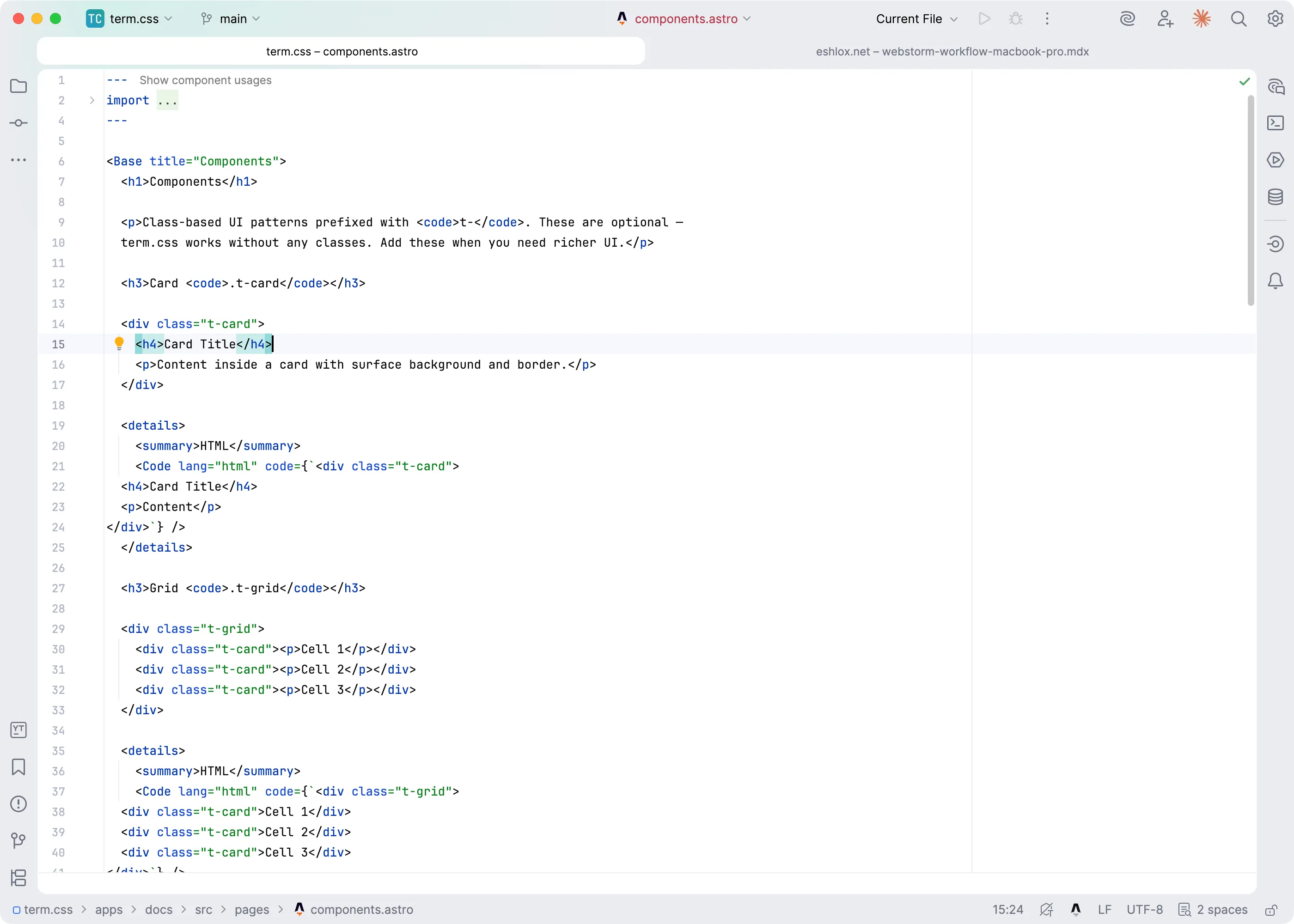
After some experimentation, I landed on a setup that completely changed how I use WebStorm. The core idea is simple: only code is visible by default, and tools appear one at a time, on demand, then disappear automatically.
Here’s everything I changed and why.
1. All tool windows are set to Dock Unpinned
What: Right-click the header of every tool window, then View Mode, then Dock Unpinned.
Why: In this mode, a tool window is only visible while it’s active. The moment it loses focus, it hides automatically. You click on code, press Esc, or open a different tool, and the previous one is gone. This means you never have two tool windows competing for screen space. Open the terminal, do your thing, click back on code, terminal is gone.
This single change is the foundation of the entire setup.
2. Custom tool window shortcuts
What: I reassigned the tool window shortcuts to match their physical position on the keyboard and how often I use them:
| Shortcut | Tool Window | Position |
|---|---|---|
⌘1 | Project (file tree) | Left side, top |
⌘2 | Commit | Left side |
⌘3 | Pull Requests | Left side |
⌘4-6 | Reserved for future use | |
⌘7 | Database | Right side |
⌘8 | Services | Right side |
⌘9 | Terminal | Right side |
⌘0 | AI Assistant | Right side, top |
Why: The numbers mirror the layout. 1, 2, 3 are on the left side of the keyboard and open tool windows docked to the left. 0, 9, 8, 7 are on the right side and open tool windows docked to the right. Most-used tools get the most accessible numbers. This makes it completely intuitive. I never have to think about which shortcut opens what.
Each shortcut acts as a toggle: press once to open, press again to close.
3. Sorted tool window icons
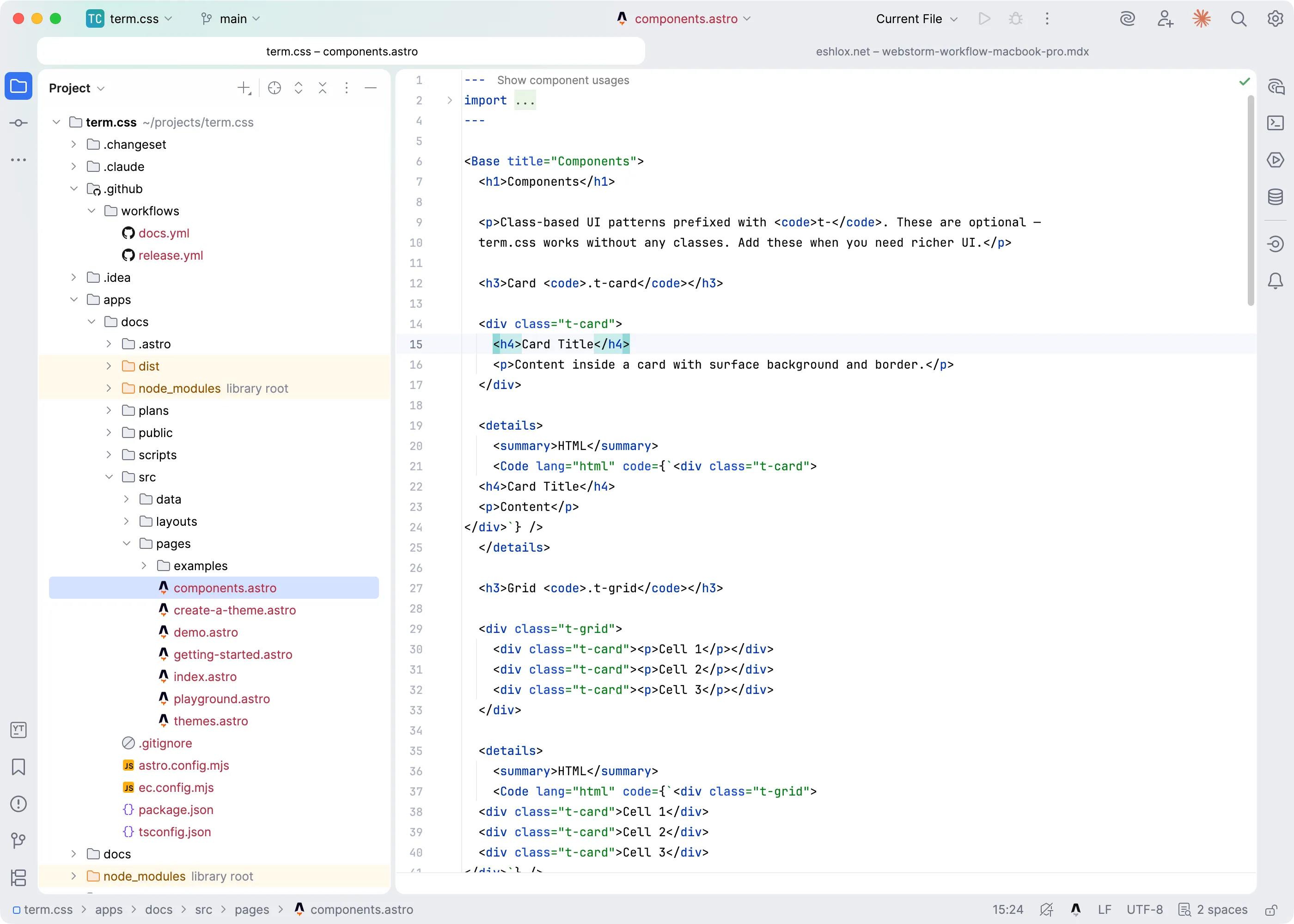
What: I dragged the tool window icons on the left and right sidebars so they’re ordered from most-used (top) to least-used (bottom). Tools I never use manually are pushed to the very bottom.
Why: Visual consistency. Even without looking at labels, I know the top icon on the left is always the file tree, and the top icon on the right is always the AI assistant. Less visual scanning, faster navigation.
4. macOS tabs for multiple projects
What: Instead of opening multiple WebStorm windows, I use macOS native window tabs (Window > Merge All Windows). Each project gets its own tab.
Why: One WebStorm icon in the dock, clean ⌘Tab switching, and I can swipe between projects just like browser tabs. No window clutter.
5. Islands Light theme
What: Settings > Appearance > Theme > Islands Light.
Why: Clean, modern, easy on the eyes during daytime coding. Pairs well with the minimal UI approach. Less visual noise overall.
Essential keyboard shortcuts
These are the shortcuts I use constantly. Combined with Dock Unpinned, they give me a workflow where I summon tools for a moment and dismiss them instantly.
A note about F-keys on macOS: By default, the top row keys are mapped to system functions (brightness, volume, etc.). Shortcuts that use F-keys, like ⌘F12 or ⇧F6, will require holding fn as well. You can change this in System Settings > Keyboard > “Use F1, F2, etc. keys as standard function keys”, but then you lose quick access to brightness and volume. I keep the default and just use fn when needed.
Navigation
| Shortcut | Action | Why |
|---|---|---|
⇧⇧ | Search Everywhere | The single most useful shortcut. Find files, classes, symbols, settings, actions, everything in one place. |
⌘⇧O | Go to File | Open any file by typing a few letters of its name. Faster than browsing the file tree. |
⌘E | Recent Files | Shows files you’ve had open recently. Replaces the need for keeping many editor tabs visible. |
⌘⇧E | Recent Locations | Like Recent Files, but jumps to the exact spot in the file where you were editing. |
⌘⇧A | Find Action | Can’t remember a shortcut? Search for any action by name and execute it. |
Code navigation
| Shortcut | Action | Why |
|---|---|---|
⌘B or ⌘+click | Go to Definition | Jump to where a function, variable, or type is defined. |
⌘⌥← | Back | Return to where you were before a jump. Essential after Go to Definition. |
⌘⌥→ | Forward | Go forward again after going back. |
⌘⇧F | Find in Files | Search for text across the entire project. |
⌘⇧R | Replace in Files | Find and replace across the entire project. |
⌘L | Go to Line | Jump to a specific line number. |
⌘F12 | File Structure | Quick outline of the current file: functions, classes, methods. Jump to any of them. |
⌥↑ / ⌥↓ | Extend/Shrink Selection | Smartly expand or shrink the selection based on code structure. Select a word, then the string, then the argument, then the function call. |
Editing
| Shortcut | Action | Why |
|---|---|---|
⌘⇧K | Delete Line | Delete the entire current line without selecting it first. |
⌘D | Duplicate Line | Duplicate the current line or selection. |
⌥⇧↑ / ⌥⇧↓ | Move Line Up/Down | Move the current line (or selected block) up or down. |
⌘/ | Toggle Line Comment | Comment or uncomment the current line or selection. |
⌘⌥L | Reformat Code | Auto-format the current file according to your code style settings. |
⌃T | Refactor This | Opens the refactoring menu: rename, extract, inline, move, and more. |
⇧F6 | Rename | Rename a symbol across the entire project safely. |
⌘⌥M | Extract Method | Select code, extract it into a new function. |
⌥Enter | Show Intention Actions | Context-aware quick fixes and suggestions. Import missing modules, fix errors, apply inspections. |
Window management
| Shortcut | Action | Why |
|---|---|---|
⌘1-9, ⌘0 | Toggle Tool Windows | Open/close tools as described above. |
Esc | Return to Editor | From any tool window, jump back to the code editor. |
⇧Esc | Hide Active Tool Window | Close the current tool window and return to the editor. |
⌘W | Close Editor Tab | Close the current file tab. |
⌘⇧F12 | Hide All Tool Windows | Hide everything, full screen code. Press again to restore. May need fn on macOS or a custom shortcut. |
Running and debugging
| Shortcut | Action | Why |
|---|---|---|
⌃R | Run | Run the current run configuration. |
⌃D | Debug | Debug the current run configuration. |
⌃⇧R | Run Current File | Run the file you’re currently editing. |
The result
Before: file tree open on the left, terminal on the bottom, AI on the right, maybe git somewhere. Code squeezed into a tiny rectangle in the middle.
After: full-screen code, always. I press ⌘9, the terminal slides in, I run a command, I click on code, terminal is gone. I press ⌘1, the file tree appears, I open a file, it disappears. I press ⌘2, the commit panel shows up, I commit, it’s gone.
The mental model is simple: the editor is always the main character. Tools are supporting actors that appear for their scene and exit.
This took about 15 minutes to set up. Zero plugins, zero external tools. Just WebStorm configured the way it should have been from the start.
Spot something wrong?
Found a typo, a broken link, or something that could be better? I would love to hear from you. Drop me a message and I will fix it.