Running Claude Code in Docker sandbox (sbx)
Docker released sbx, a tool for running AI coding agents in isolated sandbox environments. It works with Claude Code out of the box.
Install and run
brew install docker/tap/sbxsbx loginThen go to your project directory and run Claude inside a sandbox:
cd your-projectsbx run claudeThat’s it. Claude Code is now running in an isolated container with your project files.
Each sandbox is scoped to the directory you run it from, so use a separate sandbox per project. This keeps the isolation meaningful and lets features like branch mode work per-project.
First time setup
After launching, type /login to authenticate with your Anthropic account. You can also use /effort to change the effort level.
Why use it
The best part: Claude runs with bypass permissions inside the sandbox. No more confirmation prompts for every file edit or shell command. Since everything runs in an isolated container, there’s no risk to your host system. Claude can do whatever it needs without asking you to approve each action.
Managing sandboxes
List your running sandboxes:
sbx lsRunning sbx without arguments opens a TUI where you can see all your sandboxes, manage blocked/allowed hosts, and more. You can also select a sandbox and press Enter to resume it.
sbx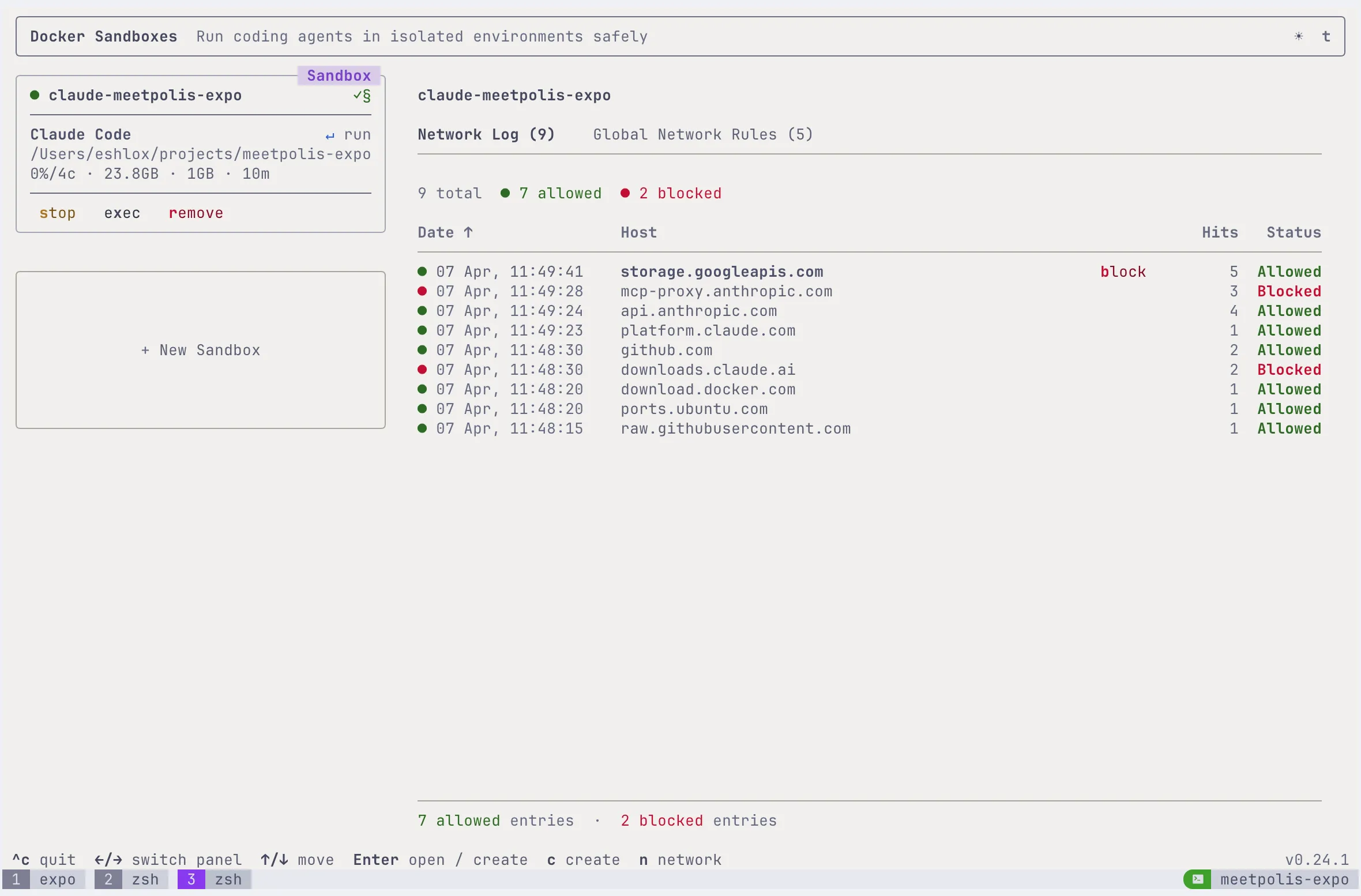
Branch mode
sbx supports branch mode, which creates a separate branch for the sandbox work. Useful when you want to review changes before merging them into your working branch.
Network access
By default, sandboxes have limited network access. You can configure network access if your project needs to reach external services.
Limitations
Clipboard doesn’t work inside the sandbox. If you use image pasting (Ctrl+V) in Claude Code, it won’t work because the container has no access to the host’s clipboard. You’ll need to save images as files in your project directory instead and reference them by path.
The theme/colors may look different inside the sandbox compared to your normal terminal. The container doesn’t inherit your terminal’s color settings. You can fix this by running /theme inside Claude Code and selecting a theme that works for you.
More
Full documentation: docs.docker.com/ai/sandboxes/get-started
Spot something wrong?
Found a typo, a broken link, or something that could be better? I would love to hear from you. Drop me a message and I will fix it.